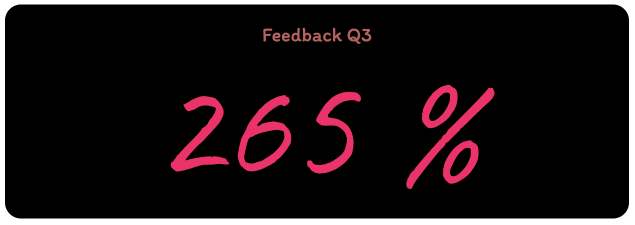
This guide explains how to create a KPI widget and embed it in your Notion page.
Step 1: Setup Your KPI Widget Datasource
- Click Widgets in the menu
- View all available widget types
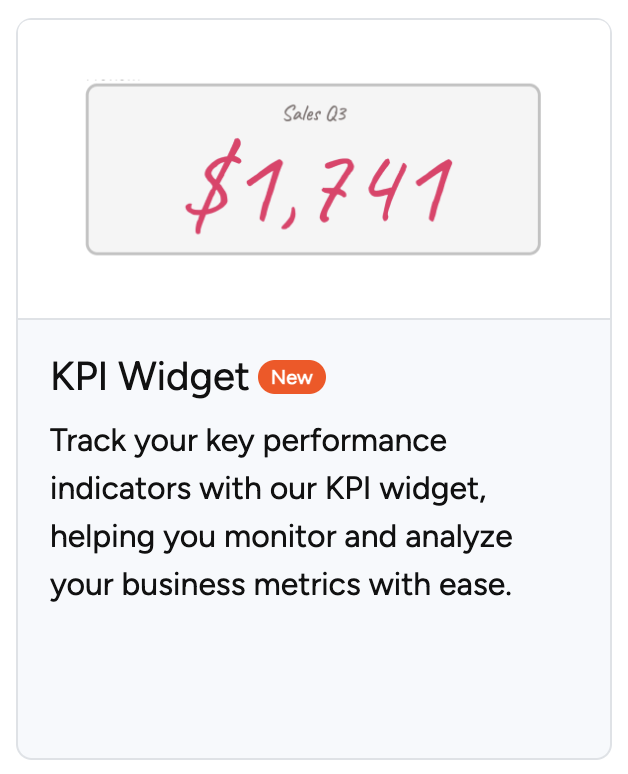
- Select the "KPI Widget" card
- The customization page will load
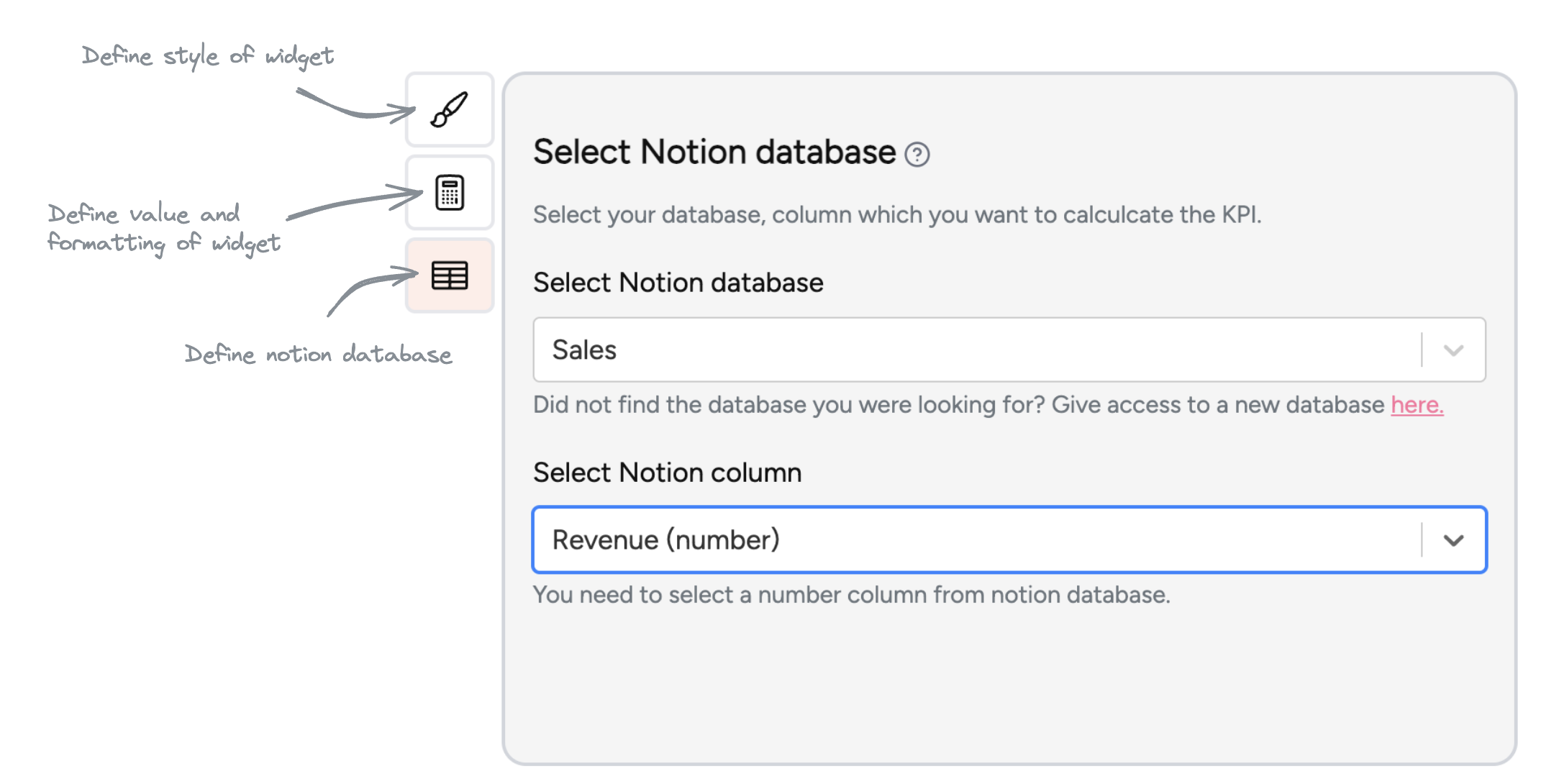
Before styling, you must select your Notion database and column:
| Property | Description |
|---|---|
| Select Notion database | Search and choose the database for the widget |
| Select Notion column | Choose which column to read values from |
Note: The styling and value format options only become available after selecting both database and column.
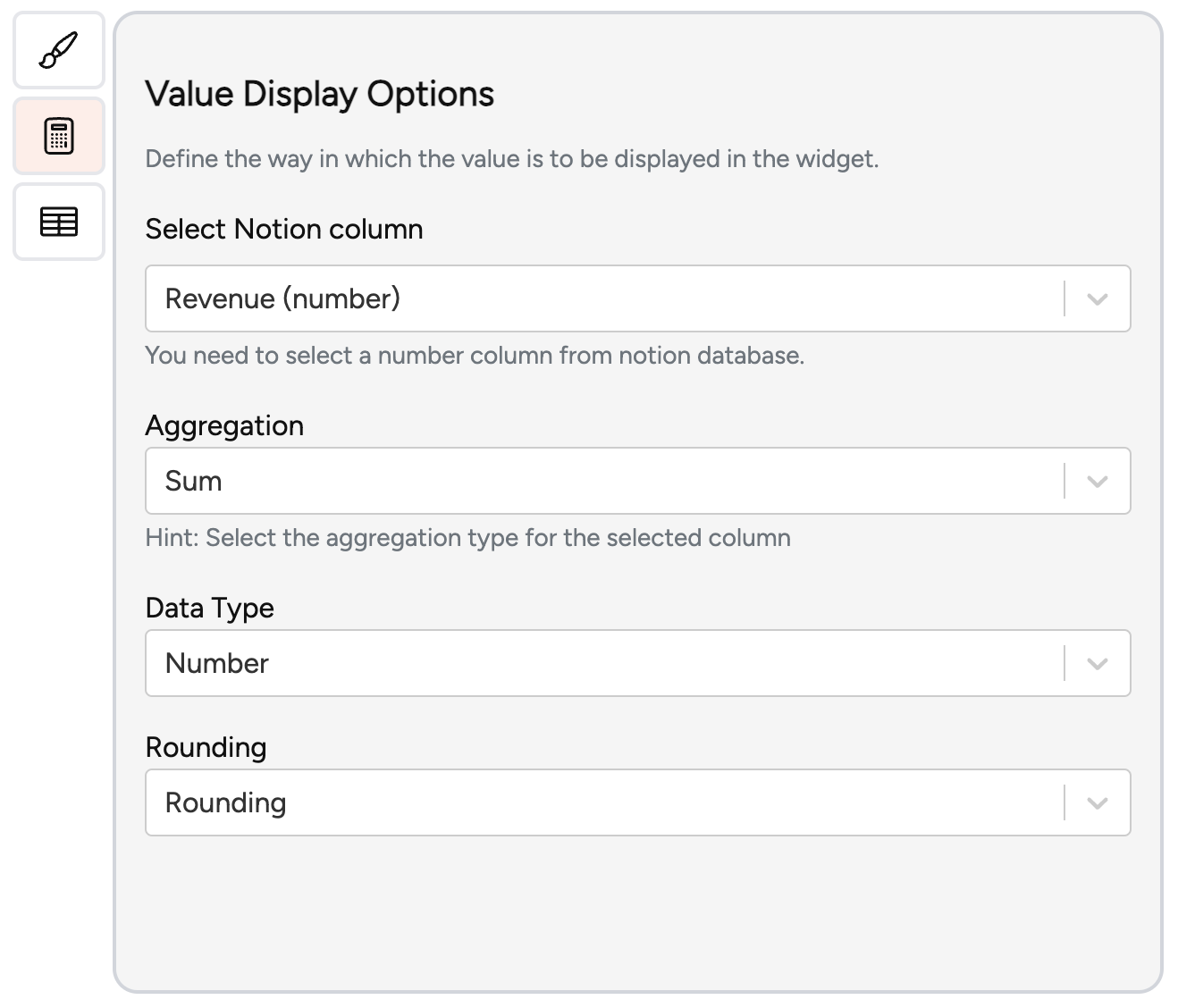
Step 2: Define Value Format
Configure how numbers display and calculate from your selected column.
| Property | Description |
|---|---|
| Aggregation | Choose Sum, Count, or Average |
| Data Type | Select Number, Percentage, or Currency (with ISO code selection for currencies like USD, CAD, EUR) |
| Rounding | Choose between whole numbers, 1 digit, or 2 digits |
Step 3: Define Widget Style
Customize three style categories:
Title Style:
- Headline text, font color, family, size, and style
Values Styles:
- Font color, family, size, and style for the calculated value
Widget Style:
- Round style (5 options), border size, background color, border color, and padding
Step 4: Create Your KPI Widget
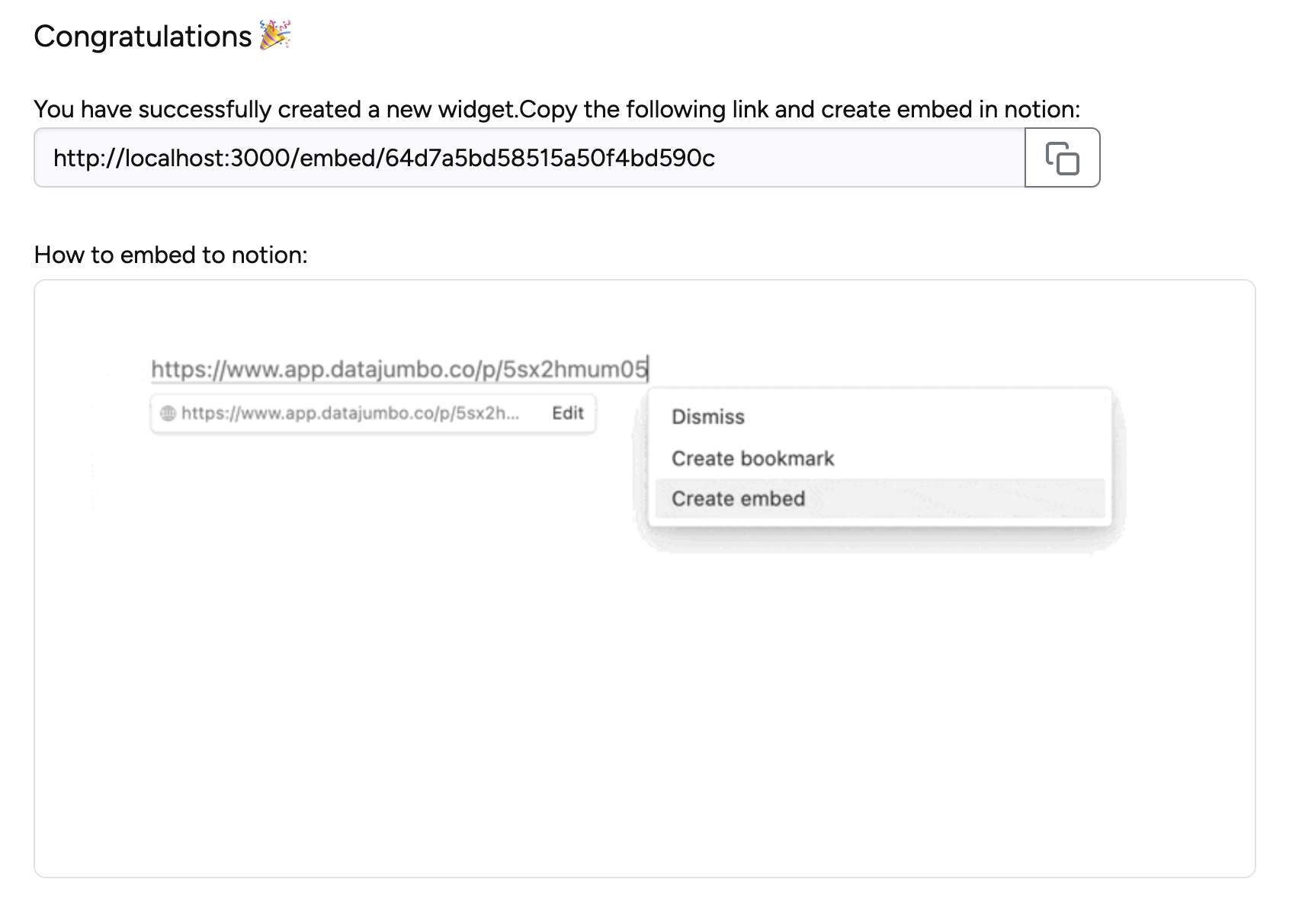
Click create Widget to finalize. Copy the generated link and add it to your Notion page.
Note: Data updates live — changes in your database immediately reflect in the widget.
Troubleshooting
- Verify proper permissions granted to the Notion Widgets app
- Confirm you're logged into the correct Notion account
- Check your internet connection
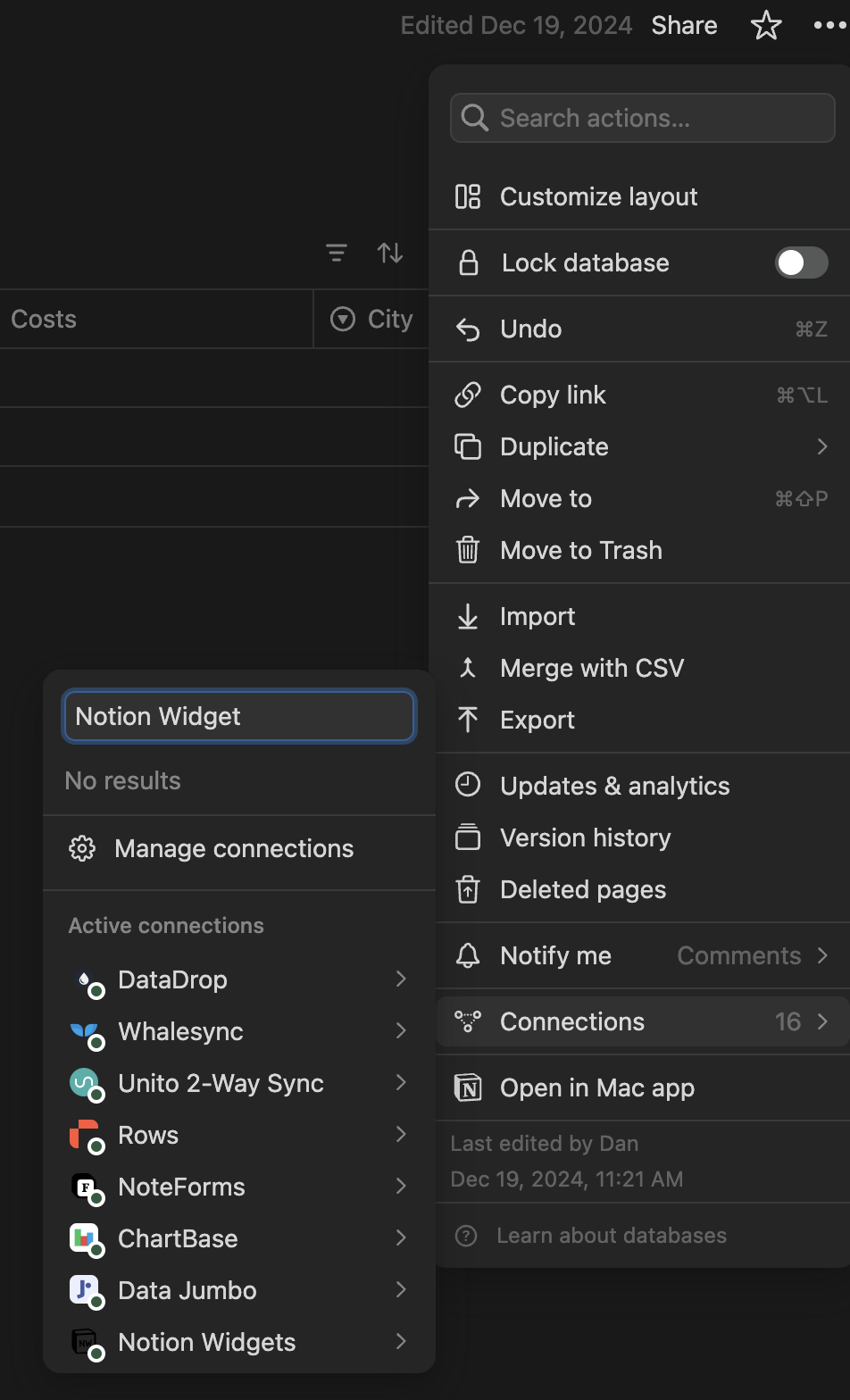
- In your Notion database settings, confirm "Notion Widgets" appears under Connections