This guide explains how to create a like button and embed it in your Notion page.
Step 1: Setup Your Like Button Widget
- Navigate to Widgets in the menu
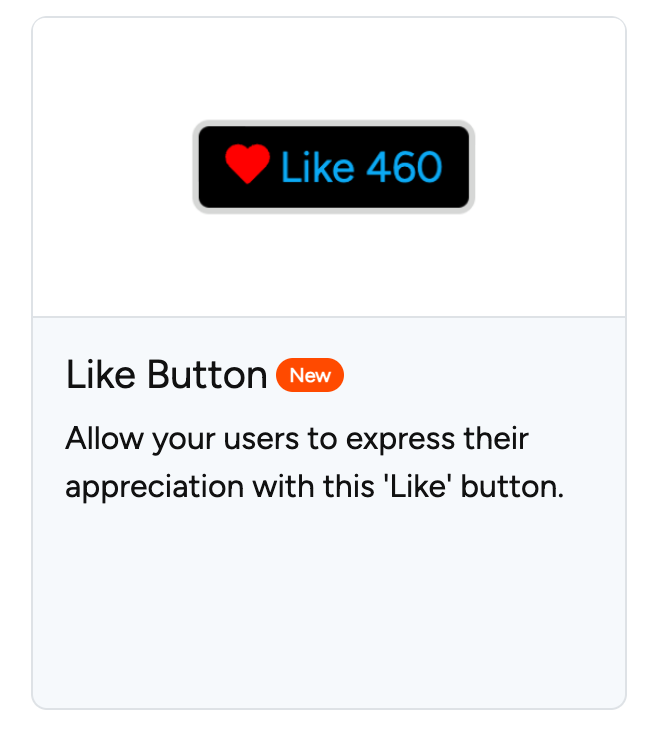
- Browse the available widgets
- Select the "Like Button" card
- Customize your widget on the customization page
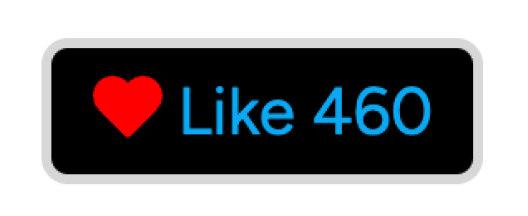
Customizable Properties
| Property | Description |
|---|---|
| Title | Name your like button to track which ones receive the most engagement |
| Button Text | Choose text for the clickable button |
| Start Value | Set initial display number (higher values encourage clicks) |
| Icon | Select an icon to display on the button |
| Size | Adjust button dimensions |
| Background | Define background color |
| Text Color | Set button text color |
| Icon Color | Customize icon color |
| Border Color | Choose border color |
| Round Style | Select from 5 rounding style options |
| Border Size | Control border stroke thickness |
Step 2: Create Your Widget
Once customized, click the "create button" to generate your widget. You'll then copy the link and add it to your Notion page.
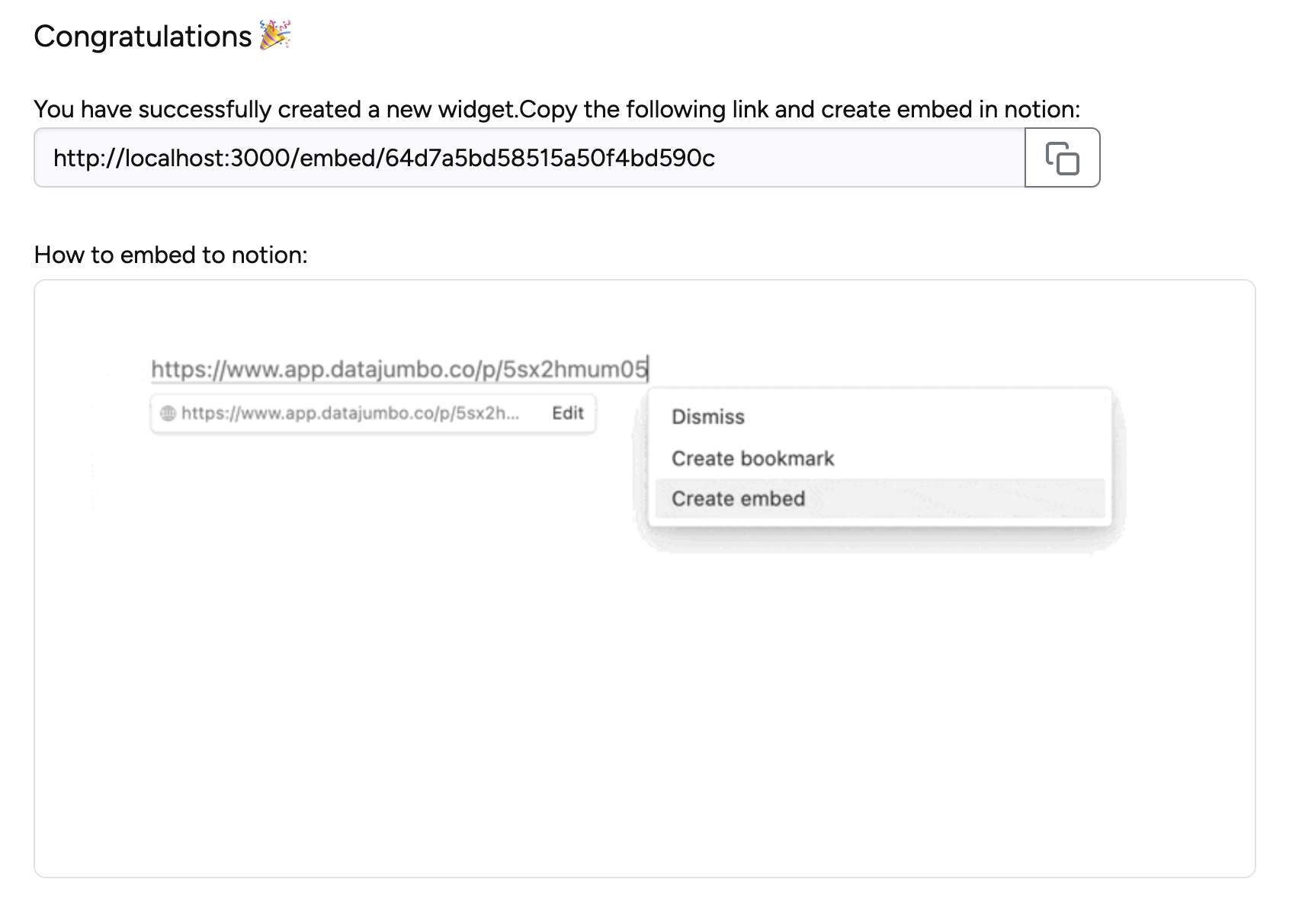
Step 3: Check Statistics
Access widget statistics through the Dashboard:
- Click "Dashboard" in the navigation menu
- View all created widgets and apps
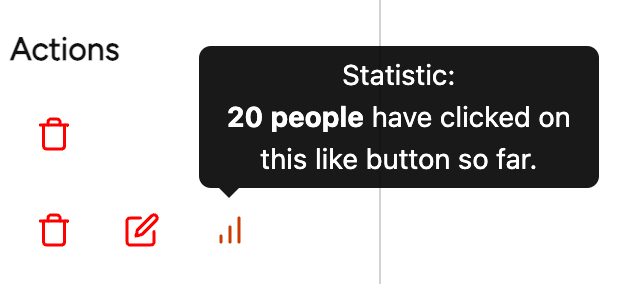
- Locate the statistics icon in the action section for your like button
- Hover over the icon to see current statistics

Key Note: Every visitor has the opportunity to click the button, however, they are only allowed to perform this process once. If the visitor accidentally clicks on the button again, the previous confirmation will be automatically revoked.
Only you can see exact click counts; visitors see the inflated start value you set.