This guide explains how to set up and embed an upvote button widget in your Notion page.
Step 1: Setup Your Upvote Button Widget
- Navigate to the Widgets menu
- Review available widget options
- Select the "Upvote Button" card
- Access the customization interface
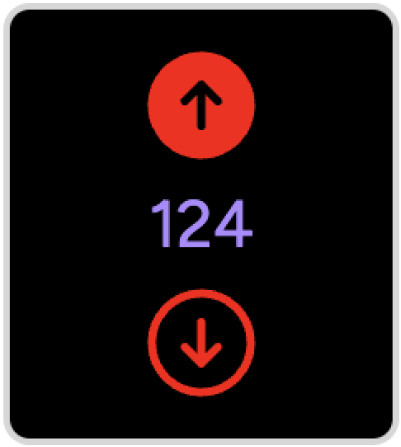
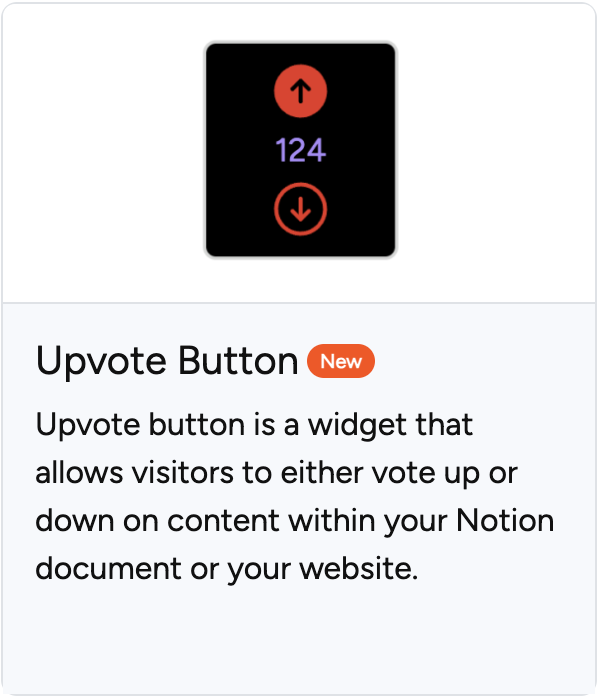
Customizable Properties
| Property | Description |
|---|---|
| Title | Name your widget to track feedback collection |
| Start Value | Initial display number; higher values encourage engagement |
| Size | Adjust number and icon dimensions |
| Background | Choose button background color |
| Text Color | Set number text appearance |
| Icon Color | Configure icon appearance |
| Border Color | Define button outline color |
| Round Style | Select from 5 rounding options |
| Border Size | Adjust stroke thickness |
Step 2: Create Your Widget
After customization, click the create button. Once generated successfully, copy the link and add it to your Notion page.
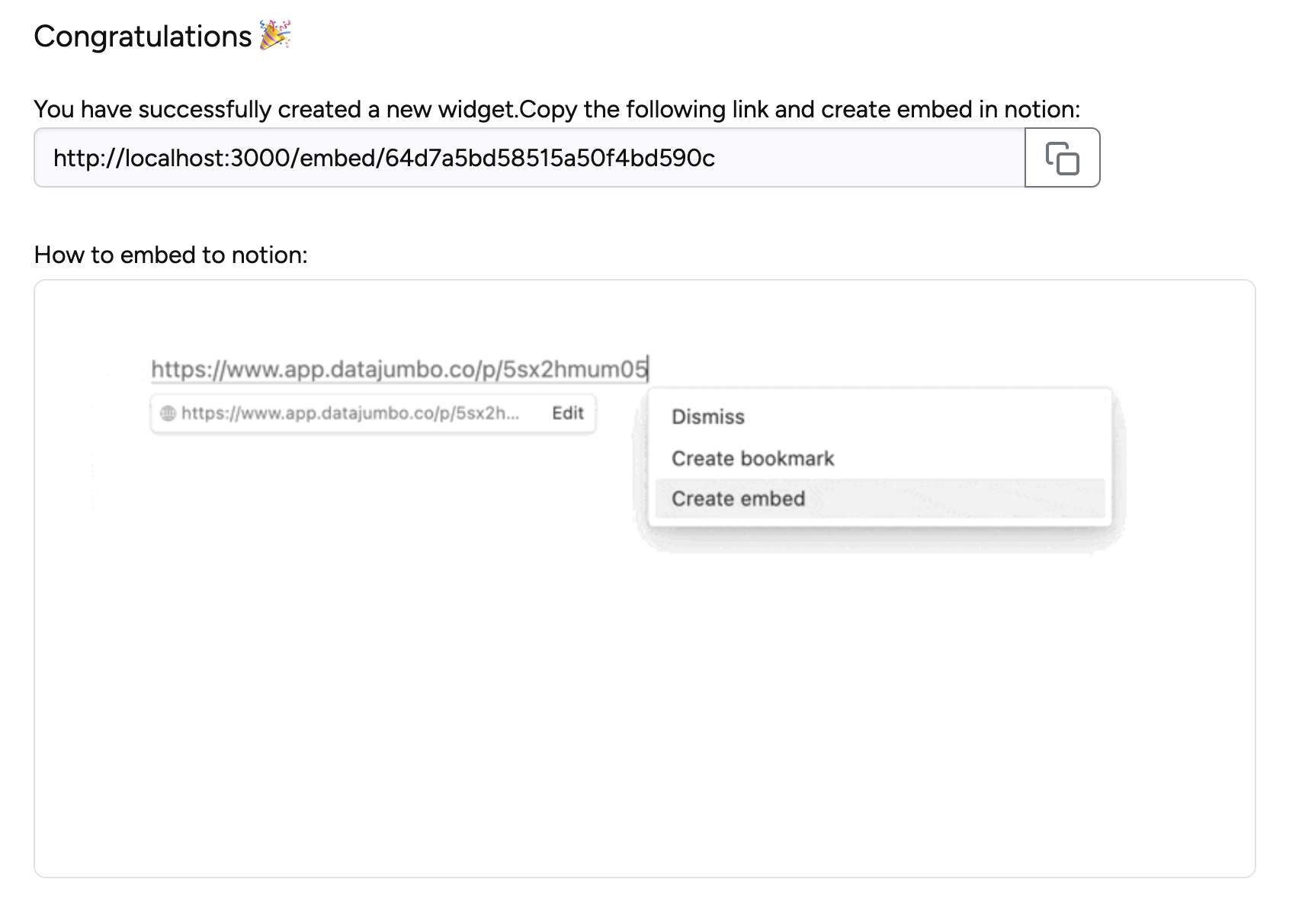
Step 3: Monitor Statistics
Track upvote performance through these steps:
- Access "My Widgets" from navigation
- View all created widgets
- Locate the statistics icon in the action section
- Hover to display current metrics

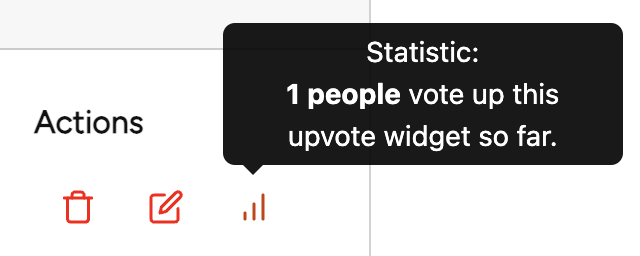
Important Note: Only you can see the total upvote count while visitors see the adjusted start value. Visitors may click once; clicking again revokes their previous vote.
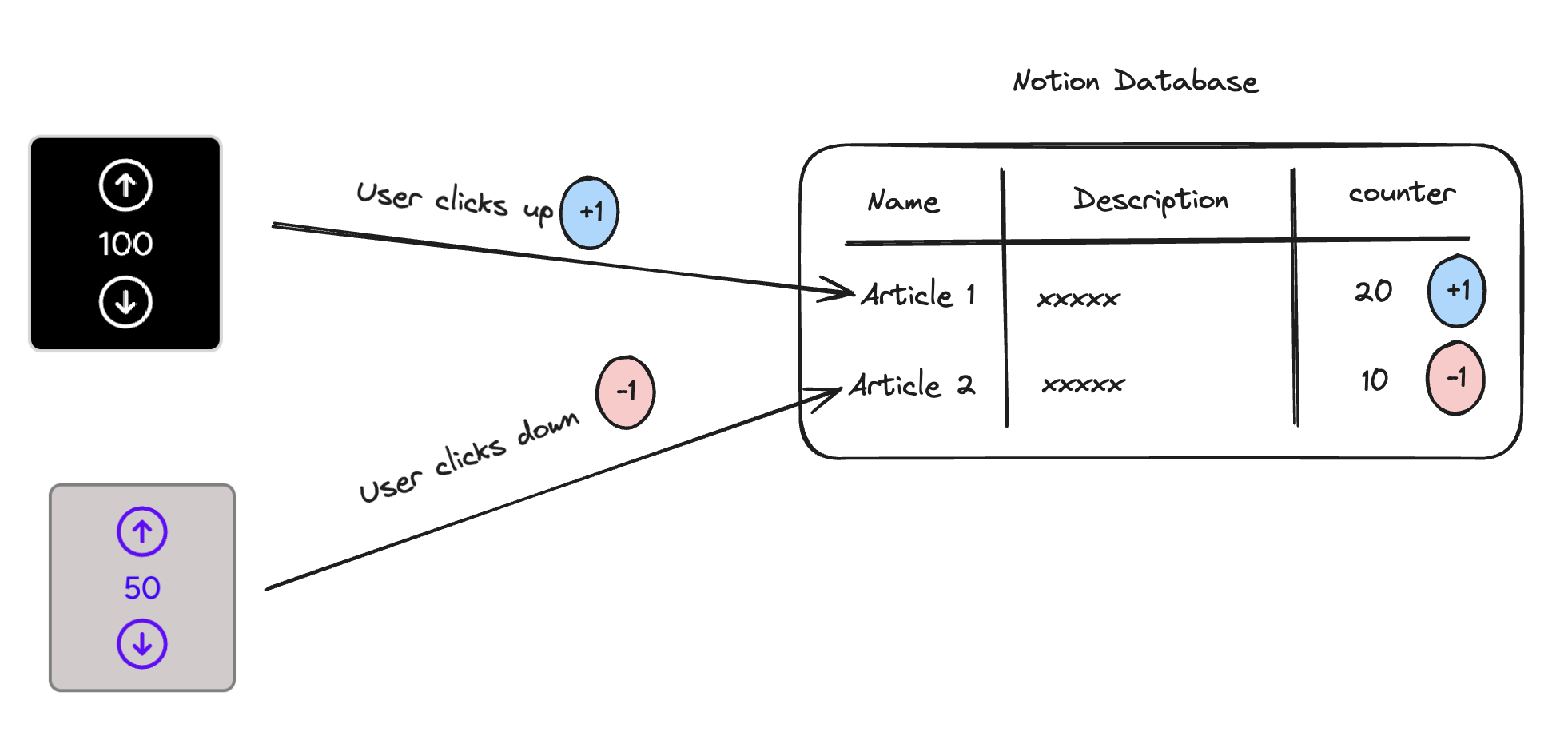
Step 4 (Optional): Sync with Notion Database
Connect your widget to a Notion database by selecting:
- Target database
- Destination column
- Specific row (up to 100 records at a time)
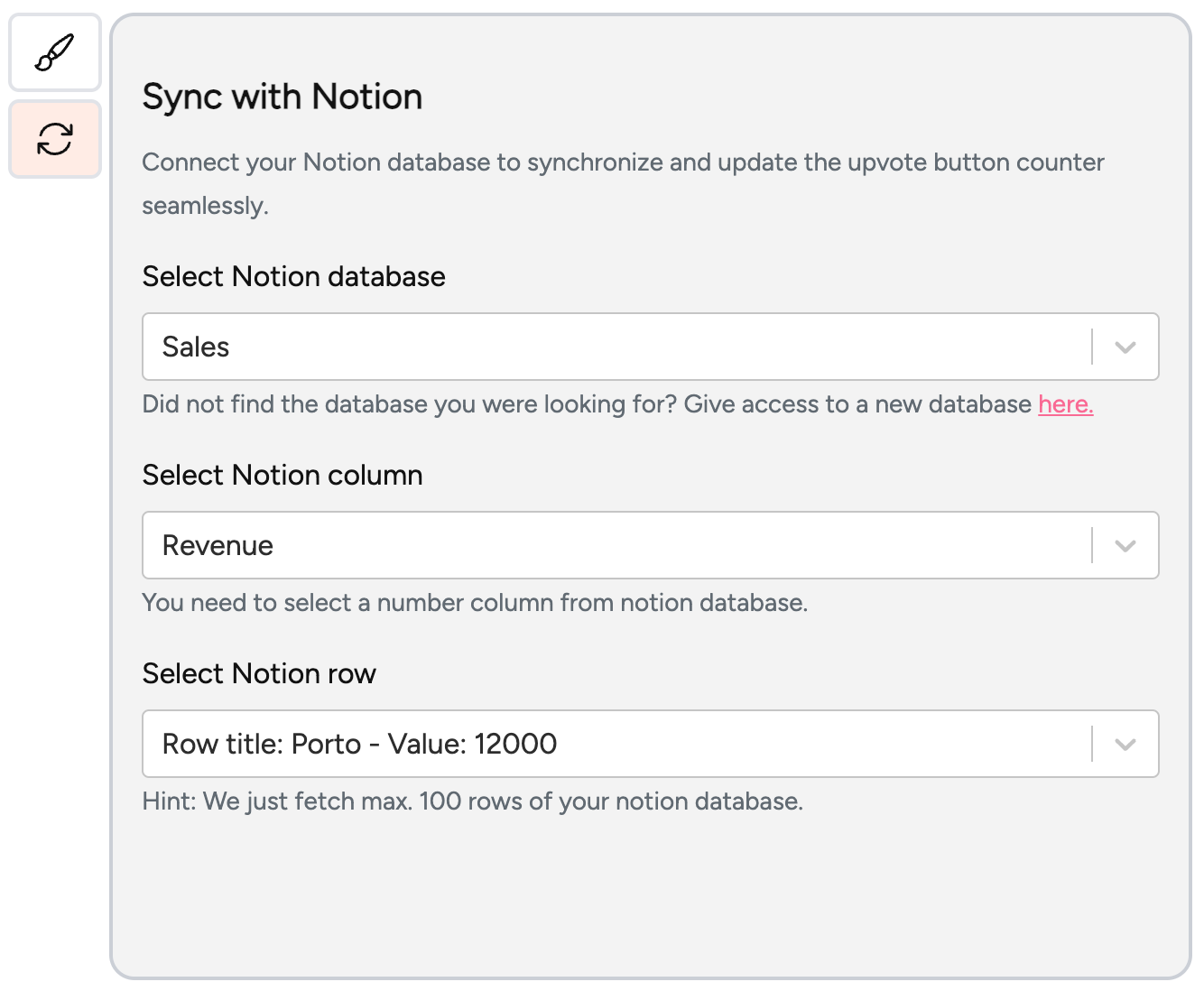
The Notion-Widgets app must be connected to your Notion account for database access.