This article explains how to create and embed a weather widget in your Notion page. Two options are available: round or square format.
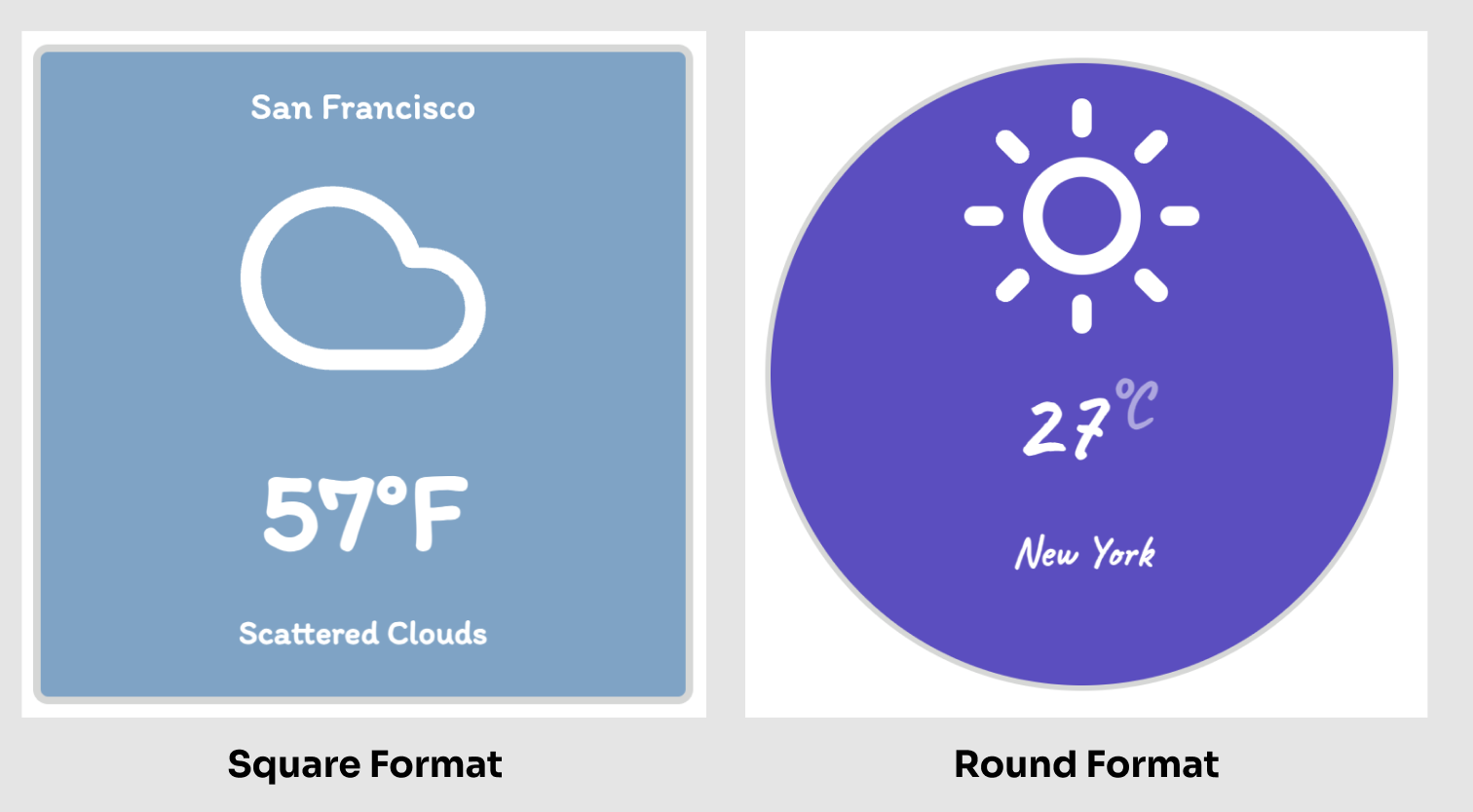
Step 1: Setup your weather widget
- Click Widgets in the menu
- View all supported widgets
- Select either "Weather Square" or "Weather Round"
- The customization page loads for widget configuration
Properties that you can customize
| Property | Description |
|---|---|
| Title of your Widget | Give your weather widget a self-speaking name |
| Weather Location | Enter the location for weather display; suggestions appear as you type |
| Unit | Choose temperature representation format |
| Font Family | Select your preferred font for the widget |
| Background | Define the widget's background color |
| Text Color | Set the text color |
| Icon Color | Set the weather icon color |
| Border Color | Set the widget's border color |
| Round Style | Choose from 4 rounding style options |
| Border Size | Set border stroke thickness |
Step 2: Create your weather widget
After customizing, click the create button to generate the widget.
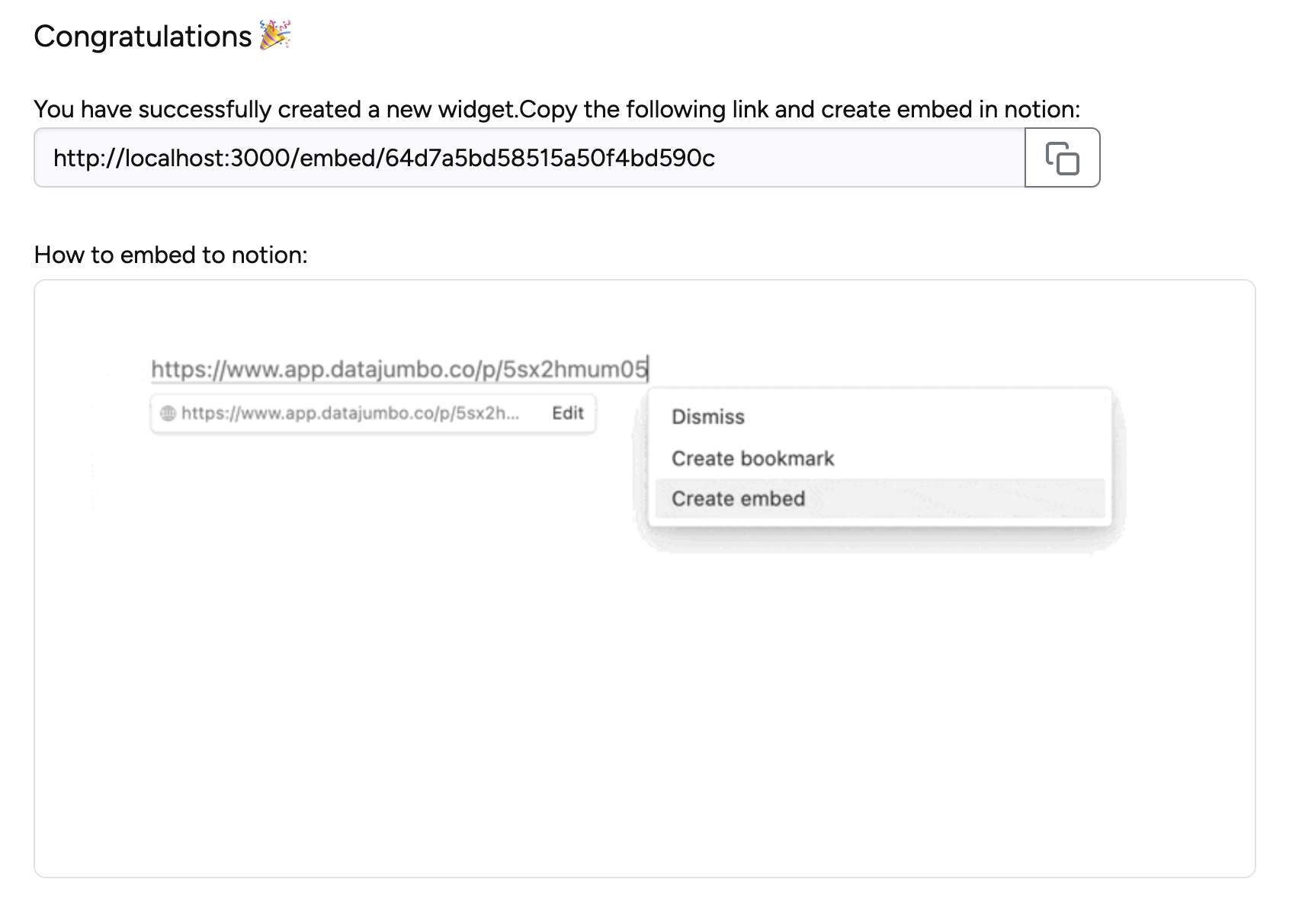
Once created successfully, copy the link and add it to your Notion page.