This guide explains the process of creating and embedding a Habit Counter widget in your Notion page.
Step 1: Select Habit Counter Widget
- Access the Widgets menu
- Browse available widget options
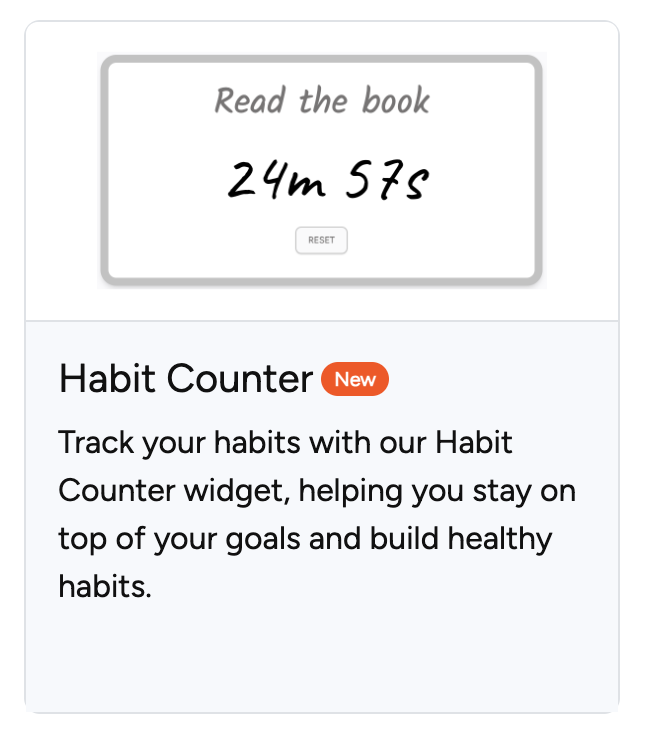
- Click the "Habit Counter Widget" card
- The customization interface will load
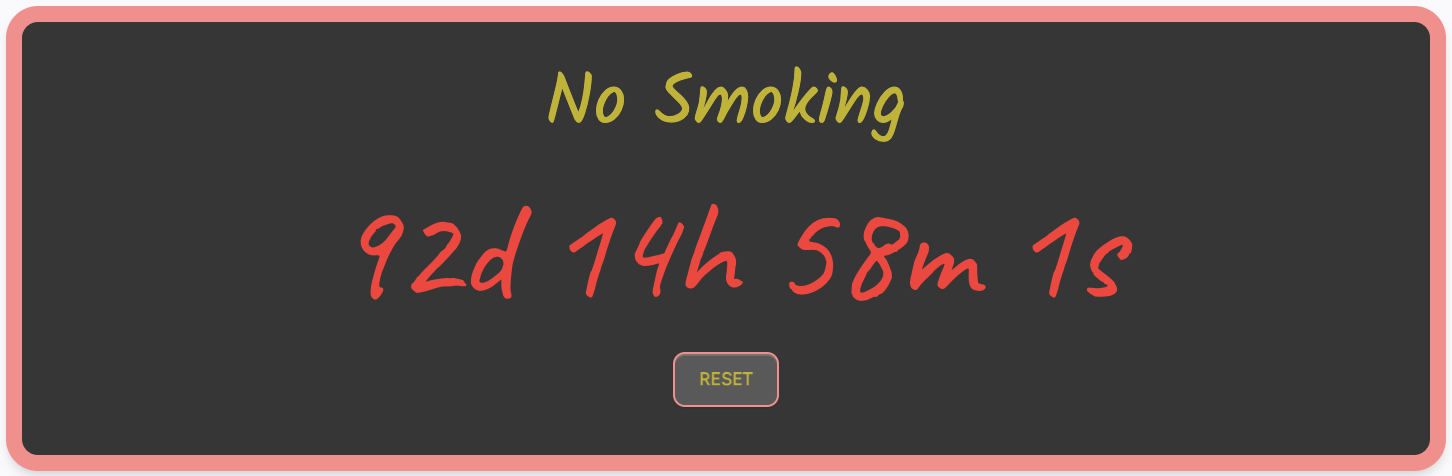
Step 2: Understanding the Widget Editor
The widget operates in two modes:
- Edit habit mode: For entering habit names
- Show habit counter mode: For displaying the counter
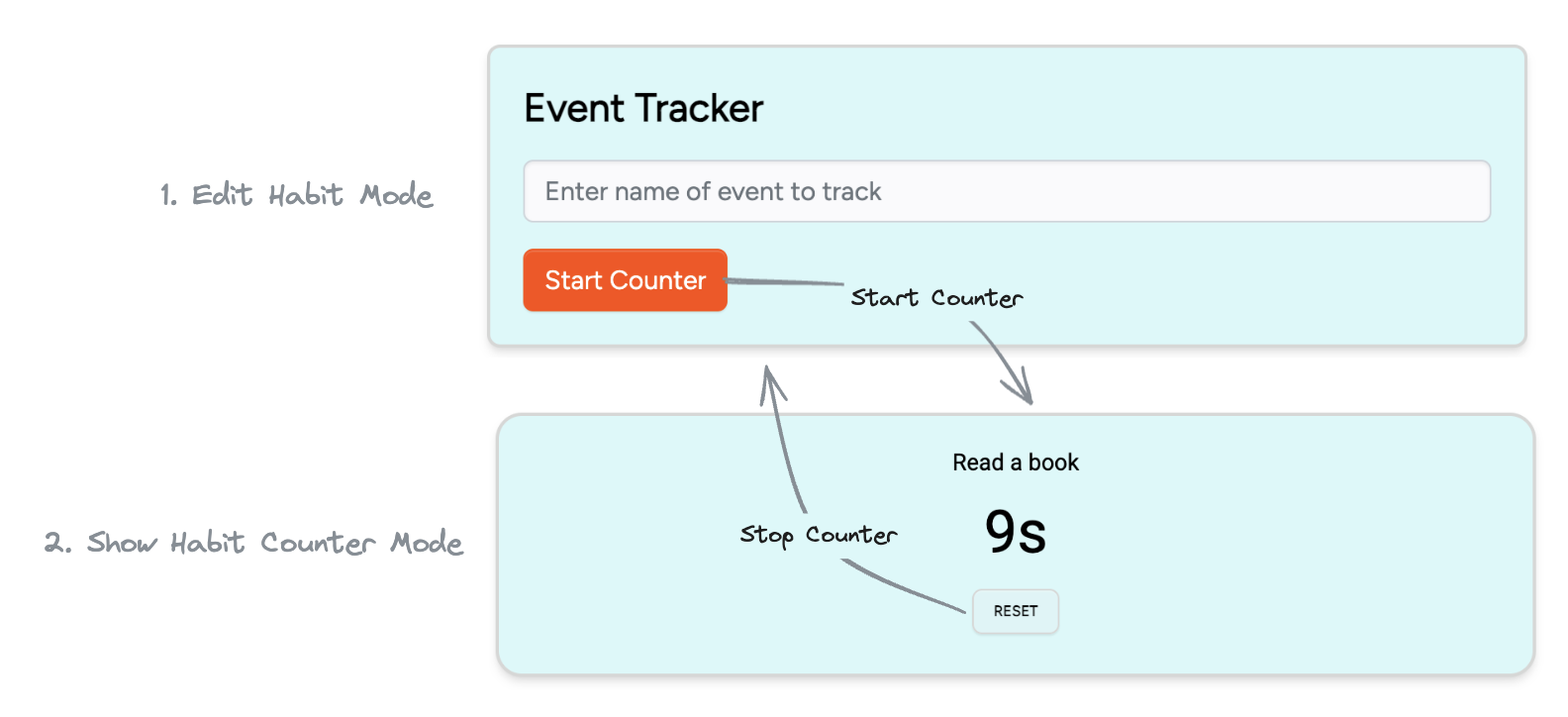
Toggle between modes using the "Start Counter" or "Reset" buttons. Note that preview data doesn't save — only styling preferences are retained. Please enter the name of the habit to start the tracking process.
Important: Only style information persists; habit names entered during preview are not stored.
Step 3: Configure Your Widget
General Settings
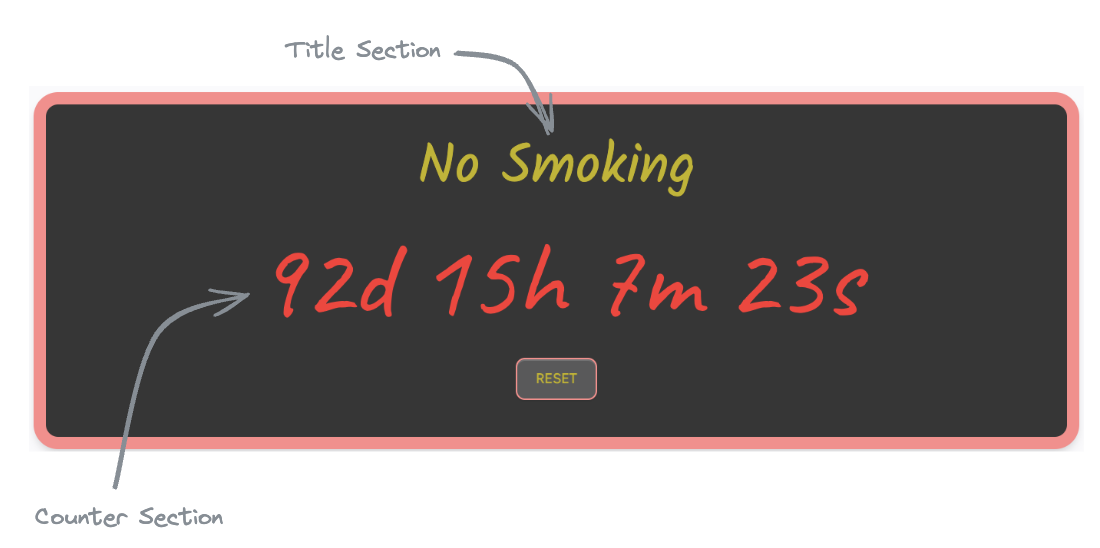
- Title: Name your widget for future reference and modifications
Title Styles
- Font Color
- Font Family
- Font Size
- Font Style
Counter Styles
- Font Color
- Font Family
- Font Size
- Font Style
Widget Styles
- Round Style (5 options available)
- Border Size
- Background Color
- Border Color
- Padding (spacing between edge and number)
Step 4: Create and Deploy
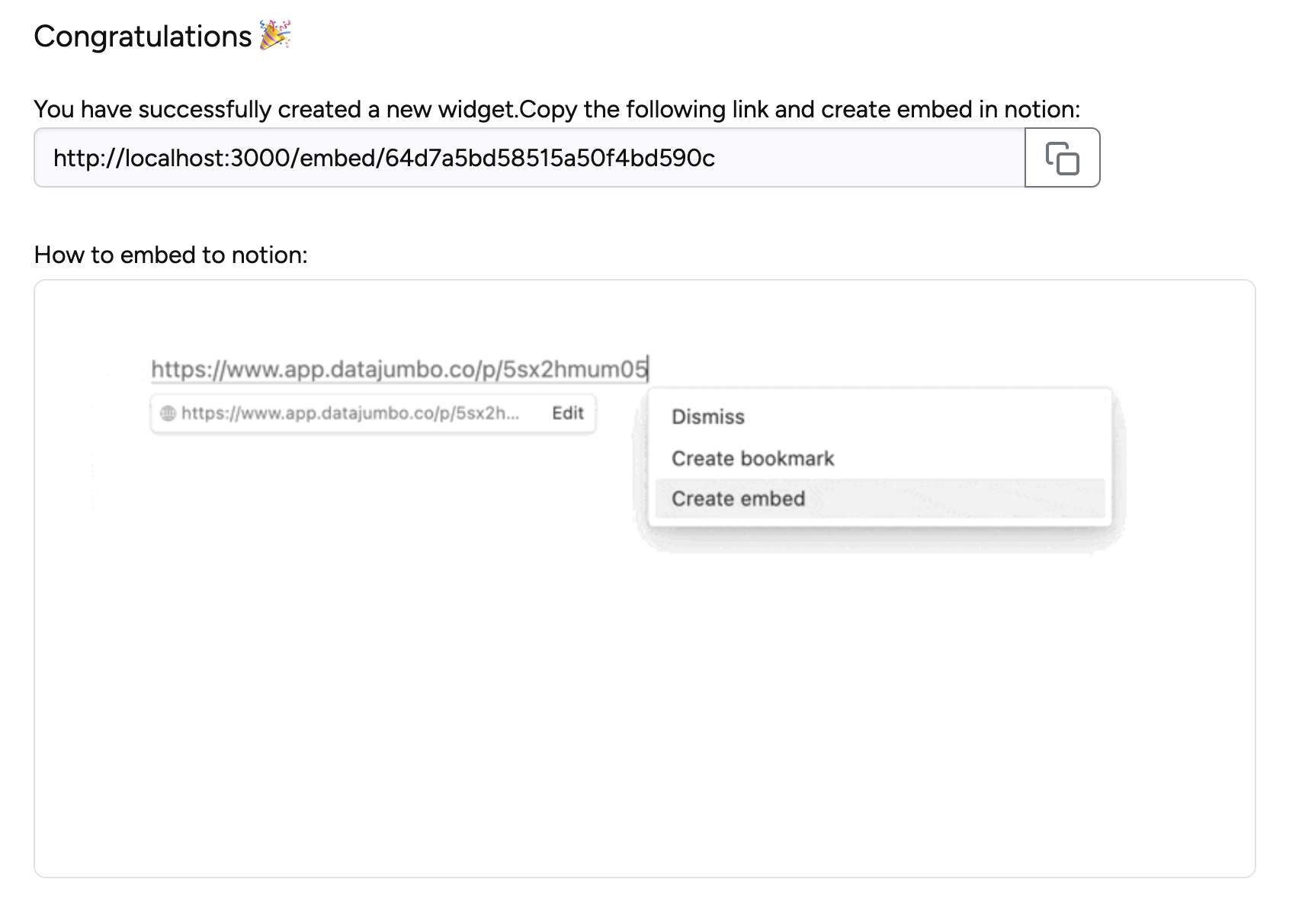
Click the create button to finalize your widget. Copy the generated link and add it to your Notion page.
Note: Post-creation edits (colors, styling) don't affect the original time and name — changes only apply in embedded mode.